---
title: "Migrate Group Policy to Intune Without Breaking Endpoints"
description: "Export GPOs as XML, analyze them with Group Policy Analytics, migrate supported settings to Intune Settings Catalog, and resolve hybrid device conflicts."
canonical: "https://adamtheautomator.com/gpo-intune-migration/"
---
# Migrate Group Policy to Intune Without Breaking Endpoints
> Export GPOs as XML, analyze them with Group Policy Analytics, migrate supported settings to Intune Settings Catalog, and resolve hybrid device conflicts.
Source: https://adamtheautomator.com/gpo-intune-migration/
---
ATA Learning
Tap to hide
[
ATA Learning
](/)
* [Home](/)
* [Tutorials](/tutorials/)
* [Instructors](/author/)
* [Advertising](/advertising/)
* [Recommended Resources](/resources/)
* [About Adam](/about-adam/)
Search for:
* [](https://twitter.com/adbertram)
* [](https://github.com/Adam-the-Automator)
* [](https://www.linkedin.com/company/adam-the-automator-llc)
* [](/feed/)

# Migrate Group Policy to Intune Without Breaking Endpoints
[Adam Bertram](https://adamtheautomator.com/author/adam-bertram/)19 May 20269 min. read
Categories: [IT Ops](/category/it-ops/)
Tags:[Active Directory](/tag/active-directory/)[Azure AD](/tag/azure-ad/)
Table of Contents
* [Prerequisites](#prerequisites)
* [Step 1: Export Your GPOs as XML](#step-1-export-your-gpos-as-xml)
* [Step 2: Import and Analyze in Group Policy Analytics](#step-2-import-and-analyze-in-group-policy-analytics)
* [Step 3: Migrate Supported Settings to the Settings Catalog](#step-3-migrate-supported-settings-to-the-settings-catalog)
* [Step 4: Handle Unsupported Settings](#step-4-handle-unsupported-settings)
* [Custom OMA-URI Profiles](#custom-oma-uri-profiles)
* [PowerShell Detection Scripts](#powershell-detection-scripts)
* [Endpoint Security Workloads](#endpoint-security-workloads)
* [Step 5: Resolve Conflicts on Hybrid-Joined Devices](#step-5-resolve-conflicts-on-hybrid-joined-devices)
* [Step 6: Pilot Test Before Production Rollout](#step-6-pilot-test-before-production-rollout)
* [What Doesn’t Migrate (And What to Do About It)](#what-doesnt-migrate-and-what-to-do-about-it)
* [Verify and Decommission](#verify-and-decommission)
You spent three days tracking down why a laptop stopped enforcing your USB policy. Turns out it hadn’t connected to a domain controller in six weeks—working remotely, behind a hotel Wi-Fi, blissfully free of any Group Policy refresh. The policy was there. The device just never checked in to get it. That’s not a misconfiguration. That’s GPO working exactly as designed—for a world that no longer exists.
Migrating your [Group Policy Objects (GPOs)](https://learn.microsoft.com/en-us/intune/device-configuration/import-group-policy-analytics#group-policy-migration-readiness-report) to [Microsoft Intune](https://learn.microsoft.com/en-us/intune/fundamentals/what-is-intune) is how you get policy enforcement back. You’ll export your existing GPOs as XML, run them through Intune’s [Group Policy Analytics](https://learn.microsoft.com/en-us/mem/intune/configuration/group-policy-analytics) tool to see what migrates cleanly and what doesn’t, push the supported settings into a [Settings Catalog](https://learn.microsoft.com/en-us/mem/intune/configuration/settings-catalog) profile, handle conflict resolution for hybrid-joined devices, and validate with a pilot group before cutting over. By the end, your policies enforce over HTTPS regardless of whether a device has seen a domain controller this quarter.
## Prerequisites
If you want to follow along hands-on, you’ll need:
* **Intune Administrator role** (or a custom RBAC role with Security Baselines and Device Configurations/Create permissions)—this is required to access Group Policy Analytics and create Configuration Profiles. Confirm the required permissions in the [Intune RBAC overview](https://learn.microsoft.com/en-us/intune/fundamentals/role-based-access-control/overview) and the [built-in Intune RBAC roles](https://learn.microsoft.com/en-us/intune/fundamentals/role-based-access-control/ref-built-in-roles).
* **[Group Policy Management Console (GPMC)](https://learn.microsoft.com/en-us/windows-server/identity/ad-ds/manage/group-policy/group-policy-management-console)** installed on your management workstation or a domain controller—you can install it via [Remote Server Administration Tools (RSAT)](https://learn.microsoft.com/en-us/windows-server/administration/install-remote-server-administration-tools) on Windows 10/11 if it’s not already present.
* **Windows 10 or Windows 11 endpoints** enrolled in Intune as the migration target—the Group Policy Analytics tool is aimed at client policy migration, so server-only policy settings generally are not migration targets for Intune device configuration.
* **[Intune licenses](https://learn.microsoft.com/en-us/intune/fundamentals/licensing/)** assigned to the users or devices you plan to target with migrated profiles.
* A dedicated [Microsoft Entra security group](https://learn.microsoft.com/en-us/entra/fundamentals/quickstart-create-group-add-members) for test endpoints before production rollout.
## Step 1: Export Your GPOs as XML
The migration starts on-premises. Intune’s analytics engine needs XML—not the HTML report that GPMC generates by default when you click through the UI.
Open [GPMC](https://learn.microsoft.com/en-us/windows-server/identity/ad-ds/manage/group-policy/group-policy-management-console) (`gpmc.msc`), expand the domain hierarchy, and navigate to **Group Policy Objects**. Right-click the GPO you want to analyze and select **Save Report**. In the file dialog, change the “Save as type” dropdown from HTML to **XML File (\*.xml)** and save it somewhere accessible.
* * *
**_Warning: Intune’s [Group Policy analytics XML import](https://learn.microsoft.com/en-us/intune/intune-service/configuration/group-policy-analytics) rejects XML files over 4 MB. If a GPO is oversized, split it or strip deprecated settings on-premises before exporting._**
* * *
For environments managing dozens or hundreds of GPOs, manual export doesn’t scale. Use PowerShell to bulk-export everything in one pass:
```powershell
# Export all GPOs in the domain to an export directory
Get-GPO -All | ForEach-Object {
Get-GPOReport -Guid $_.Id -ReportType Xml -Path "C:\GPOExports\$($_.DisplayName).xml"
}
```
This runs through every GPO in the domain and writes an individual XML file for each. After it completes, check file sizes—anything over 4 MB needs to be split before import.
```powershell
# Find oversized exports before attempting upload
Get-ChildItem "C:\GPOExports\*.xml" | Where-Object Length -gt 4MB |
Select-Object Name, @{N='SizeMB';E={[math]::Round($_.Length/1MB, 2)}}
```
Run these from a domain-joined management workstation with the RSAT Group Policy Management tools installed.
Keep a simple inventory file with the exports so you can prove what was under the limit before you upload anything:
```powershell
Get-ChildItem "C:\GPOExports\*.xml" |
Select-Object Name, @{N='SizeMB';E={[math]::Round($_.Length/1MB, 2)}} |
Export-Csv "C:\GPOExports\gpo-import-inventory.csv" -NoTypeInformation
```
That CSV is the artifact you can hand back to yourself later when one XML gets too big and you need to know exactly which GPO caused it.
## Step 2: Import and Analyze in Group Policy Analytics
Sign into the [Microsoft Intune admin center](https://intune.microsoft.com) and navigate to **Devices > Group Policy analytics** (or **Devices > Manage devices > Group Policy analytics** depending on your portal layout). Click **Import** and select your XML files—you can upload multiple files at once.
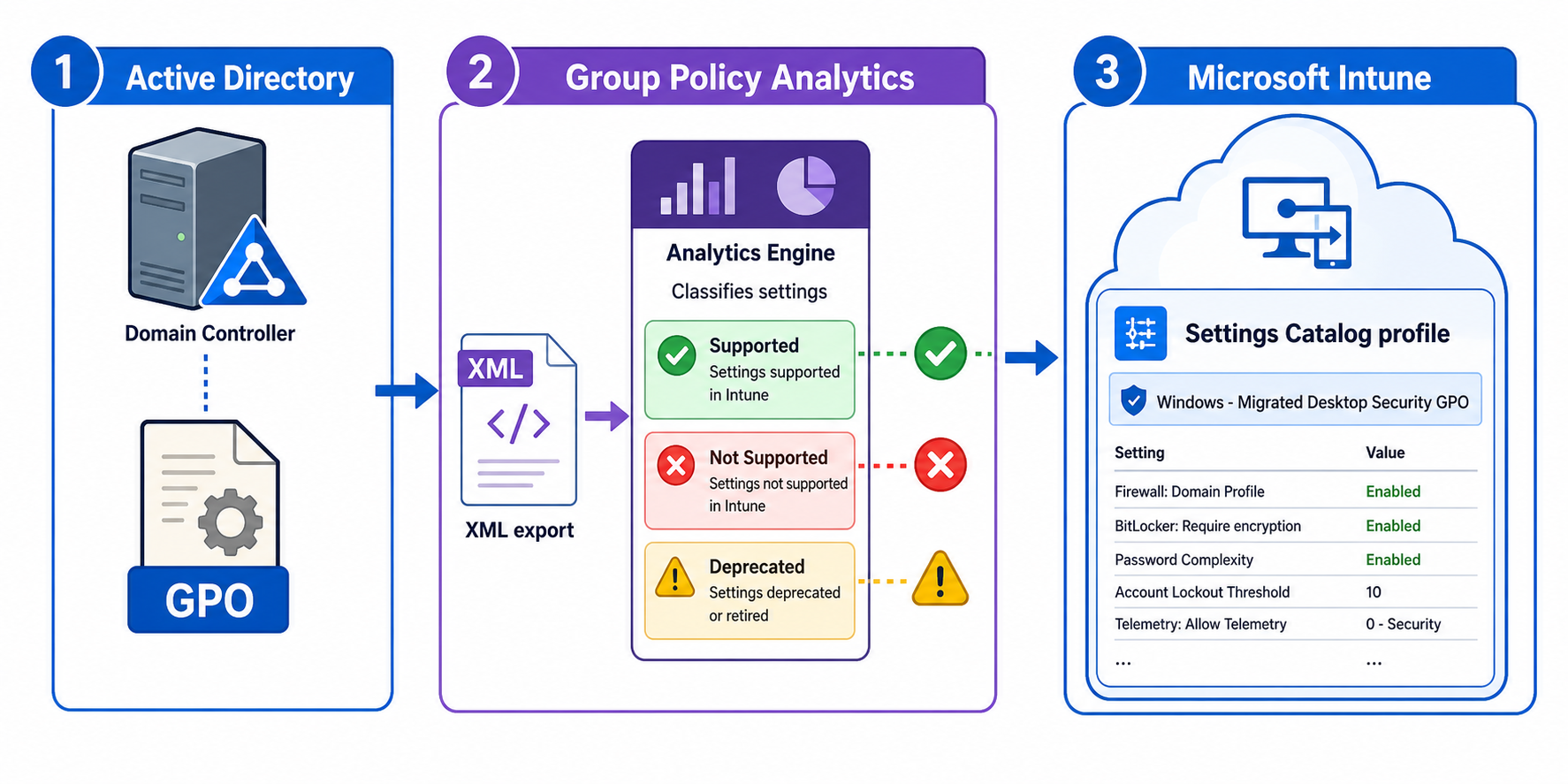
The dashboard that appears after processing is the most useful thing Intune has added for migration planning in years. Each imported GPO shows an **MDM Support percentage**: the ratio of settings in that GPO that have a direct equivalent in the Intune Settings Catalog. Click any percentage to drill into the setting-by-setting breakdown.
You’ll see the summary report use one of three statuses, and the detailed MDM Support field uses a different set of values:
| Status | What It Means |
| --- | --- |
| **Ready for migration** | A direct [Configuration Service Provider (CSP)](https://learn.microsoft.com/en-us/windows/client-management/mdm/policy-configuration-service-provider) equivalent exists. The Migrate button will include this setting. |
| **Not supported** | No direct cloud equivalent. You’ll need an alternative delivery method—custom OMA-URI, a PowerShell remediation script, or a Win32 app. |
| **Deprecated** | The setting applies to retired technologies like Internet Explorer compatibility modes. Don’t migrate these—retire them. |
In the setting details, the MDM Support field uses `Yes`, `No`, and other values for older settings that require a newer supported version.
At this point you’re doing triage, not migration. Work through the unsupported settings and decide for each: is this still needed? Most legacy environments have accumulated GPO sprawl over years—settings nobody can explain, policies that predate the operating system they’re running on. Use the report as permission to clean house.
After the import, capture the portal evidence in a short notes file so the next step is based on something you can repeat, not a memory of a screen:
```
Import batch: 2026-05-18
Files uploaded: 12
Ready for migration: 8
Not supported: 3
Deprecated: 1
Keep: BitLocker, password, screen lock
Drop: printer mapping, legacy IE mode
```
That note is the bridge from portal triage to actual migration decisions.
* * *
**_Pro Tip: Don’t try for 100% GPO parity in Intune. “Lift and shift” thinking ports your technical debt into the cloud. Use this as an opportunity to build a clean policy set from scratch._**
* * *
## Step 3: Migrate Supported Settings to the Settings Catalog
Once you’ve reviewed the analysis, select the GPO you want to migrate from the [Group Policy analytics](https://learn.microsoft.com/en-us/intune/intune-service/configuration/group-policy-analytics) list and click **Migrate**. The wizard lets you choose individual settings—select only those marked as Ready for migration and skip anything flagged as Not supported or Deprecated.
Intune creates a [Settings Catalog](https://learn.microsoft.com/en-us/intune/intune-service/configuration/settings-catalog) profile pre-populated with values pulled directly from your GPO XML: enabled/disabled states, string values, numeric configurations. Review every pre-populated value before you confirm creation. The migration is best-effort—if a parent setting migrated without a required child setting, or a value arrived in an unexpected format, the portal surfaces errors in the Notifications pane.
Give the profile a name that survives a reorg: something like `Windows - Migrated Desktop Security GPO` beats `New Policy 4` when you’re debugging at 11 PM.
Keep a migration worksheet beside the portal so you can verify the profile against the source GPO later:
```
Profile name: Windows - Migrated Desktop Security GPO
Source GPO: Desktop Security
Keep: password length, screen lock timeout
Skip: printer deployment, drive maps
Verify: profile exists in Settings Catalog and shows no import errors
```
The worksheet is the artifact that keeps you honest when the wizard makes the easy part look finished before you’ve actually checked anything.
The diagram below shows how Group Policy settings flow from Active Directory through the XML export and analytics engine into a Settings Catalog profile in Intune.
_GPO to Intune migration flow_
## Step 4: Handle Unsupported Settings
Settings marked “Not supported” in the analytics report don’t have a Settings Catalog equivalent—but that doesn’t necessarily mean they can’t be configured through Intune. You have three options depending on what the setting actually does.
### Custom OMA-URI Profiles
Custom [Open Mobile Alliance Uniform Resource Identifier (OMA-URI)](https://learn.microsoft.com/en-us/windows/client-management/mdm/policy-configuration-service-provider) profiles work when you know the Windows Configuration Service Provider (CSP) path for a setting. For settings that exist in the [Windows Policy CSP documentation](https://learn.microsoft.com/en-us/windows/client-management/mdm/policy-configuration-service-provider) but aren’t surfaced in the Settings Catalog UI, you can configure them manually:
| Field | Value |
| --- | --- |
| Name | Descriptive label for the setting |
| OMA-URI | `./Device/Vendor/MSFT/Policy/Config//` |
| Data Type | Integer, String, or Boolean depending on the setting |
| Value | The value from your original GPO |
### PowerShell Detection Scripts
PowerShell detection scripts handle Group Policy Preferences—registry modifications, mapped drives, printer deployments, file operations. These are the settings that the analytics tool frequently marks as Not supported. Use a PowerShell script to detect the current state before you migrate it, then handle the actual fix through Intune’s [Remediations](https://learn.microsoft.com/en-us/intune/intune-service/fundamentals/remediations) feature if you need one (Devices > Manage devices > Scripts and remediations in the admin center).
```powershell
# Detect whether the preference still exists before you migrate it
$mappedDrives = Get-SmbMapping | Where-Object RemotePath -like '\\fileserver\*'
if ($mappedDrives) {
exit 1
}
exit 0
```
That gives you a repeatable detection check instead of a hidden UI-only preference that nobody can verify later.
### Endpoint Security Workloads
Endpoint Security workloads cover AppLocker and Windows Defender Firewall rules. If your GPO contained either, the Migrate button is grayed out—deliberately. Configure those settings under **Endpoint security** in the admin center instead.
## Step 5: Resolve Conflicts on Hybrid-Joined Devices
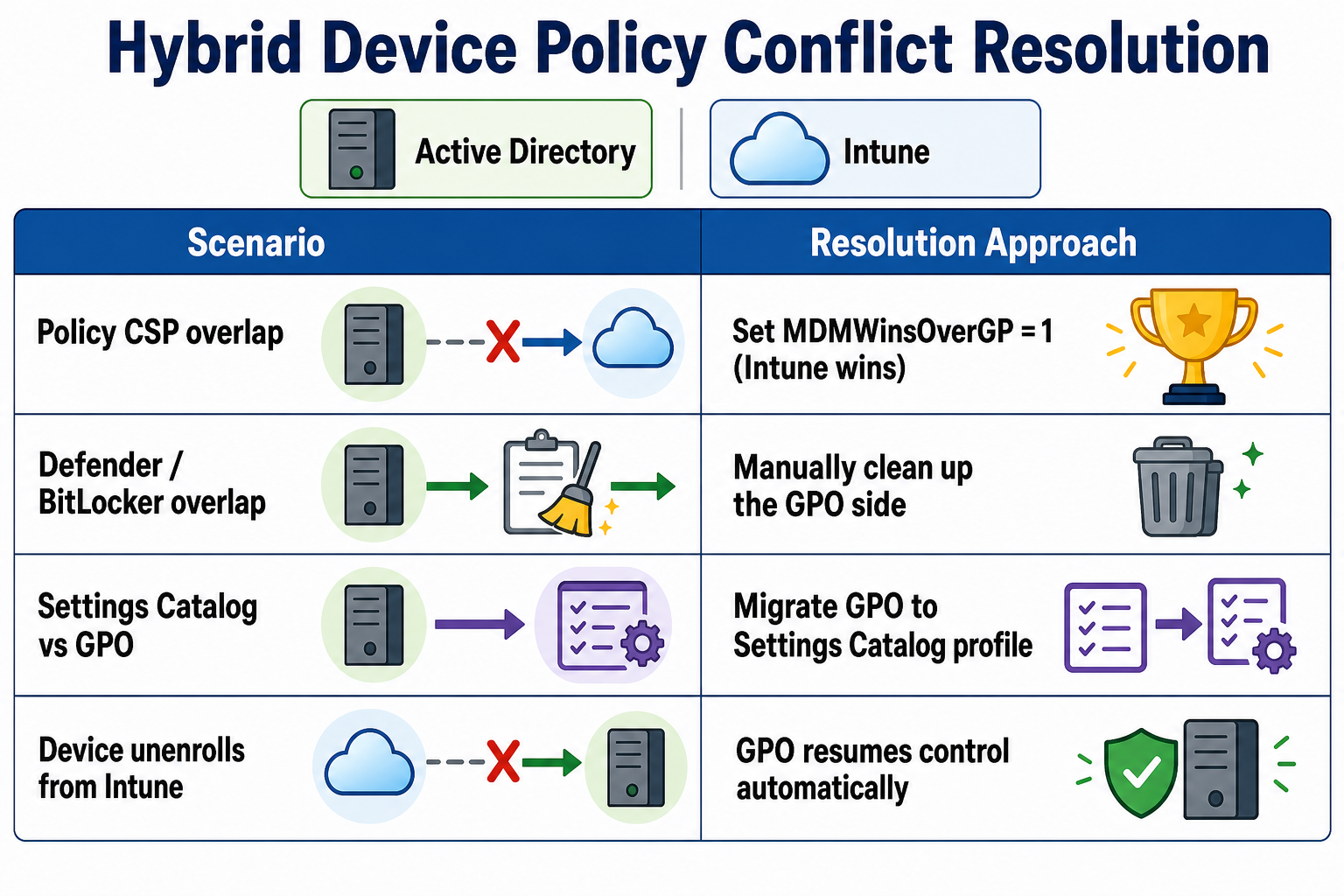
If your devices are hybrid Entra ID-joined (domain-joined and cloud-managed simultaneously), you will hit policy conflicts. When the same setting is configured by both an on-premises GPO and an Intune profile with different values, Microsoft says there is no guarantee which one wins. Use [MDMWinsOverGP](https://learn.microsoft.com/en-us/windows/client-management/mdm/policy-csp-controlpolicyconflict#mdmwinsovergp) to force MDM to win for [Policy CSP](https://learn.microsoft.com/en-us/windows/client-management/mdm/policy-configuration-service-provider) settings.
Deploy it through a [Settings Catalog](https://learn.microsoft.com/en-us/intune/intune-service/configuration/settings-catalog) profile:
1. In the Intune admin center, create a new **Settings Catalog** profile for Windows 10 and later.
2. Search for **Control Policy Conflict** in the settings picker.
3. Add **MDM Wins Over GP** and set it to **The MDM policy is used and the GP policy is blocked**.
The equivalent Custom OMA-URI configuration if you prefer that route:
| Field | Value |
| --- | --- |
| OMA-URI | `./Device/Vendor/MSFT/Policy/Config/ControlPolicyConflict/MDMWinsOverGP` |
| Data Type | Integer |
| Value | `1` |
Note that `MDMWinsOverGP` applies only to [Policy CSP](https://learn.microsoft.com/en-us/windows/client-management/mdm/policy-configuration-service-provider) settings—it doesn’t override every Intune-managed policy category. Duplicate configurations in non-Policy CSP areas (Defender, BitLocker) should still be cleaned up manually. Also worth knowing: if a device unenrolls from Intune, the block lifts and the domain GPOs resume control immediately.
```
# Verify the policy landed on a pilot device
Get-ItemProperty 'HKLM:\SOFTWARE\Microsoft\PolicyManager\current\device\ControlPolicyConflict' |
Select-Object MDMWinsOverGP
```
That registry check is the reproducible proof that the portal setting reached the device.
The diagram below shows how each hybrid conflict path resolves.
_Hybrid conflict paths_
## Step 6: Pilot Test Before Production Rollout
Assign every migrated profile to your test [Microsoft Entra security group](https://learn.microsoft.com/en-us/entra/fundamentals/quickstart-create-group-add-members) first. Never assign directly to All Users or All Devices on day one—a misconfigured setting that bricks a device is a much better discovery on five test machines than on five hundred production endpoints.
Trigger a manual sync on your test devices to pull the new profiles immediately rather than waiting for the next check-in cycle. On a test device, verify the Intune policies applied using the [MDM Diagnostics Report](https://learn.microsoft.com/en-us/windows/client-management/mdm/diagnose-mdm-failures-in-windows-10):
1. Navigate to **Settings > Accounts > Access work or school**.
2. Select the Entra ID account and click **Info** (or the account name).
3. Scroll down and click **Create report** under Advanced Diagnostic Report.
4. Open the report from `C:\Users\Public\Documents\MDMDiagnostics`—look for your migrated policy and confirm `ControlPolicyConflict` is set to `1` for hybrid devices. See Microsoft’s [MDM diagnostic log collection](https://learn.microsoft.com/en-us/windows/client-management/mdm/diagnose-mdm-failures-in-windows-10) steps for the exact report path.
You can also validate specific settings from the command line:
```
# Check MDM-applied policies via registry
Get-ChildItem "HKLM:\SOFTWARE\Microsoft\PolicyManager\current\device" |
Select-Object PSChildName
```
Once you’ve confirmed settings applied correctly and the devices behave as expected, reassign the profiles to production groups. Then unlink the corresponding GPOs in GPMC—don’t just leave them in place. Parallel management of the same settings from two systems is how you get a debugging nightmare six months from now.
## What Doesn’t Migrate (And What to Do About It)
The analytics tool handles the straightforward cases cleanly. The edge cases are worth knowing before you start, and the [Remediations](https://learn.microsoft.com/en-us/intune/intune-service/fundamentals/remediations) docs tell you exactly where Microsoft expects you to put the leftover logic:
* **Group Policy Preferences** (registry items, drive maps, scheduled tasks, printer deployments)—largely unsupported in Group Policy Analytics. Replicate via PowerShell remediation scripts deployed through Intune Remediations.
* **Custom ADMX templates** for third-party software—may appear as “Unknown” in the analytics report. Check if the software vendor publishes an Intune ADMX import or Settings Catalog template.
* **Security filtering and Windows Management Instrumentation (WMI) filters**—GPOs can be filtered to specific computers using WMI queries. Intune uses Microsoft Entra group membership for targeting instead. Reconstruct the logic as dynamic Microsoft Entra groups based on device attributes.
* **Windows Server policies**—server-only policy settings generally are not migration targets for Intune device configuration; expect them to remain in GPO or move to a different management toolchain, and use analytics results to identify unsupported or unknown settings.
The gaps don’t invalidate the migration. They mean you’ll have a hybrid delivery model during the transition: Intune handles the bulk of client configuration, PowerShell remediations cover the Preferences, and a small set of legacy GPOs may persist for specific infrastructure settings until alternatives exist.
## Verify and Decommission
Before declaring any GPO decommissioned, run `gpresult /h report.html` on a device that has gone through the migration and verify the setting is no longer being applied by GPO. Cross-reference with the Intune policy report for that device (Intune admin center > Devices > select device > Device configuration). Microsoft’s [Group Policy Modeling and Results](https://learn.microsoft.com/en-us/windows-server/identity/ad-ds/manage/group-policy/group-policy-modeling-results) guidance is the right place to sanity-check the GPO side of that comparison.
Once validated, unlink the GPO in GPMC. Keep the GPO object in Active Directory for a transition period as a rollback option—if something breaks, relinking takes seconds. After 30 days of clean operation with the Intune policy, delete the GPO object.
Your endpoint fleet is now enforcing policy over HTTPS, regardless of whether a device has seen a domain controller recently. The next remote worker with a hotel Wi-Fi connection gets their security settings on schedule.
Share this article
[Share on X](https://twitter.com/intent/tweet?url=https%3A%2F%2Fadamtheautomator.com%2Fgpo-intune-migration%2F&text=Migrate%20Group%20Policy%20to%20Intune%20Without%20Breaking%20Endpoints)[Share on Facebook](https://www.facebook.com/sharer/sharer.php?u=https%3A%2F%2Fadamtheautomator.com%2Fgpo-intune-migration%2F)[Share on LinkedIn](https://www.linkedin.com/sharing/share-offsite/?url=https%3A%2F%2Fadamtheautomator.com%2Fgpo-intune-migration%2F)
## Related Posts

### [EasyEntra: A Look at Hybrid User Management with Virtual Templates](/easyentra-look-hybrid-user-management-virtual/)
EasyEntra consolidates Active Directory and Entra ID management into a single interface. This hands-on review explores Virtual User Templates—a feature that standardizes user provisioning across hybrid environments.

### [Fix Kerberos Clock Skew Logon Failures Using w32tm](/fix-kerberos-clock-skew-w32tm/)
Fix Kerberos clock skew logon failures by checking w32tm sources, pointing the PDC emulator at NTP, and resyncing drifted clients.

### [Find and Disable Every Inactive AD Computer with PowerShell](/find-inactive-computers-active-directory/)
Find inactive computer accounts in Active Directory with Search-ADAccount, then disable and quarantine them with PowerShell in steps you can undo.
## Categories
* [IT Ops](/category/it-ops/)
* [Cloud](/category/cloud/)
* [DevOps](/category/devops/)
* [Home Ops](/category/home-ops/)
* [Information Security](/category/infosec/)
* [Software Development](/category/software-development/)
## Site
* [Home](/)
* [Tutorials](/tutorials/)
* [Instructors](/author/)
* [Advertising](/advertising/)
* [Recommended Resources](/resources/)
* [About Adam](/about-adam/)
Copyright 2026© ATA Learning | [Privacy Policy](/privacy/)