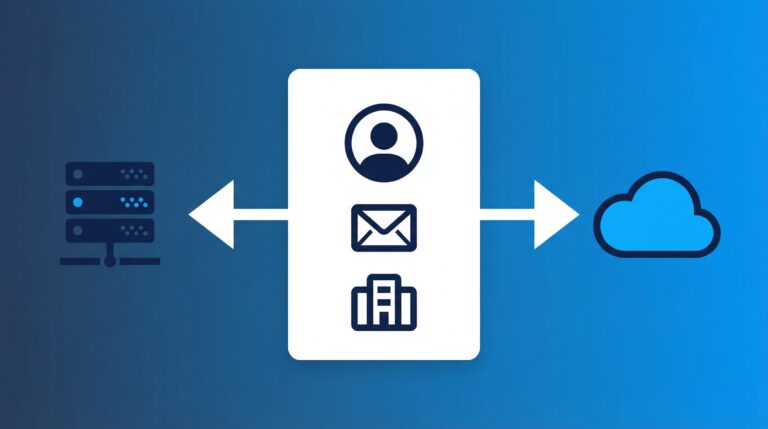


Managing users across Active Directory, Entra ID, and Exchange Online has always been a juggling act. I remember the days of keeping ADUC, the Entra portal, and Exchange Admin Center open in separate windows, constantly switching between them to complete what should be a single task. For hybrid environments, this fragmented experience leads to inconsistency, wasted time, and the dreaded “tribal knowledge” problem where only certain senior admins know all the steps.
EasyEntra aims to consolidate all of this into a single, familiar interface. In this review, I take a hands-on look at how well it delivers—with a particular focus on its newest feature: Virtual User Templates.
EasyEntra has sponsored this post. If you’d like to learn more about EasyEntra, check them out!
Getting Started with EasyEntra
Installation follows a standard setup wizard. I downloaded the installer from the EasyEntra website and had it running in about five minutes. The application runs as a native Windows desktop app rather than a browser-based portal.
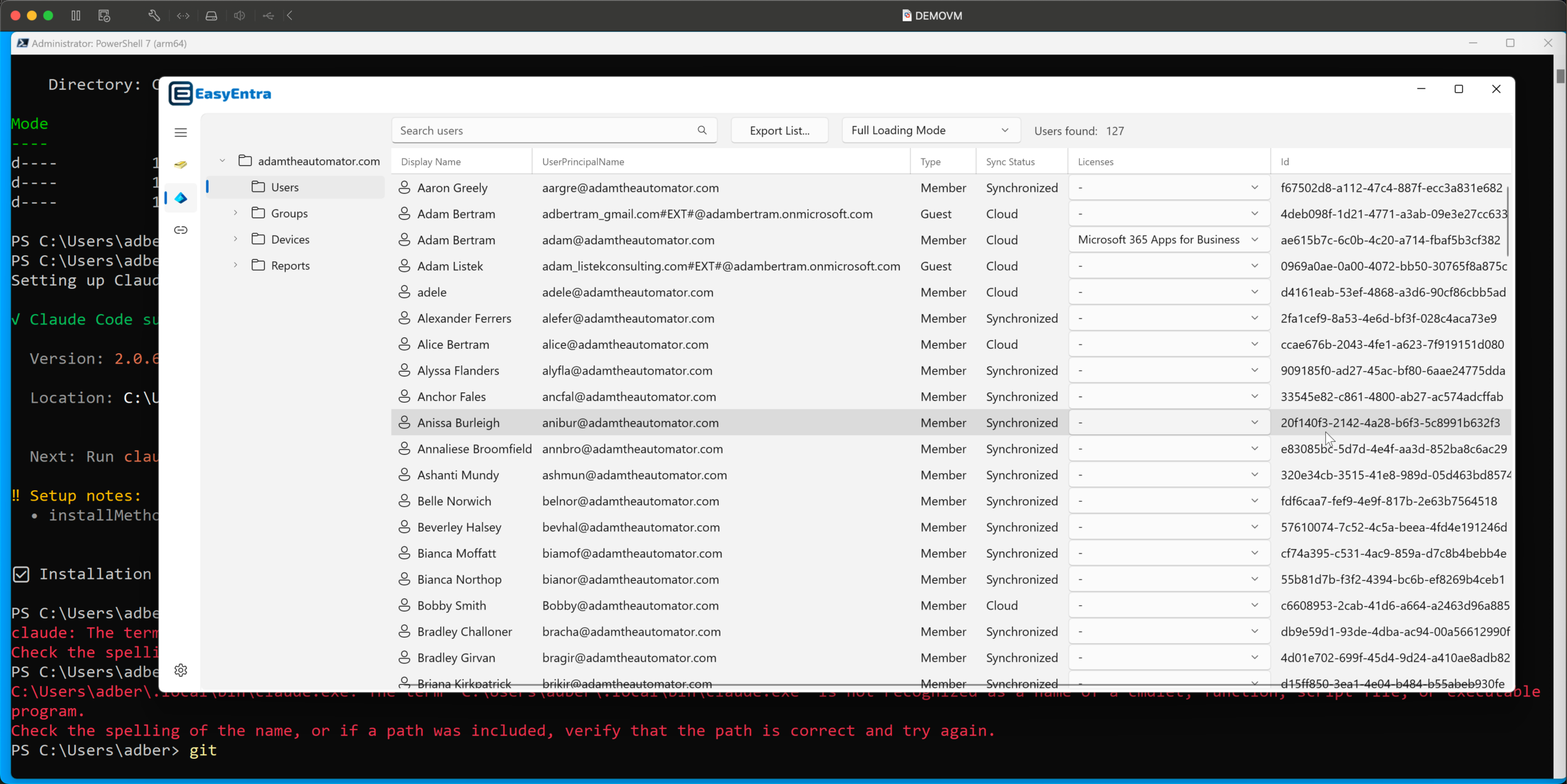
The first step after installation is connecting to your environment via the Connection Manager. I connected to my on-premises Active Directory using SSO, which required no additional configuration. Adding my Entra ID tenant involved walking through a wizard that granted the necessary Microsoft Graph permissions.
EasyEntra doesn’t require any schema modifications to Active Directory, nor does it need its own SQL database or web server. The application stores template definitions directly in your existing AD and Entra infrastructure.
From a security standpoint, EasyEntra uses OAuth2 for authentication, which supports modern security methods including MFA and FIDO2—the same protocol used by Microsoft’s own admin portals. It doesn’t require a service account, and all actions remain fully traceable via the Unified Audit Log. The application communicates directly with Microsoft’s cloud services; nothing proxies through EasyEntra’s servers.
Virtual User Templates
If you’ve ever onboarded 15-20 users a week, you know the problem: every admin does it differently. An enterprise helpdesk manager recently told the EasyEntra team: “My team creates 15-20 users per week. Every admin does it differently. We have a 27-step checklist, but somehow every user still looks different.”
Virtual User Templates solve this by letting you define a role once and provision users from that template in seconds. The key difference from simply copying an existing user is that templates are static—they don’t change when the source user joins new projects or gets added to temporary groups.
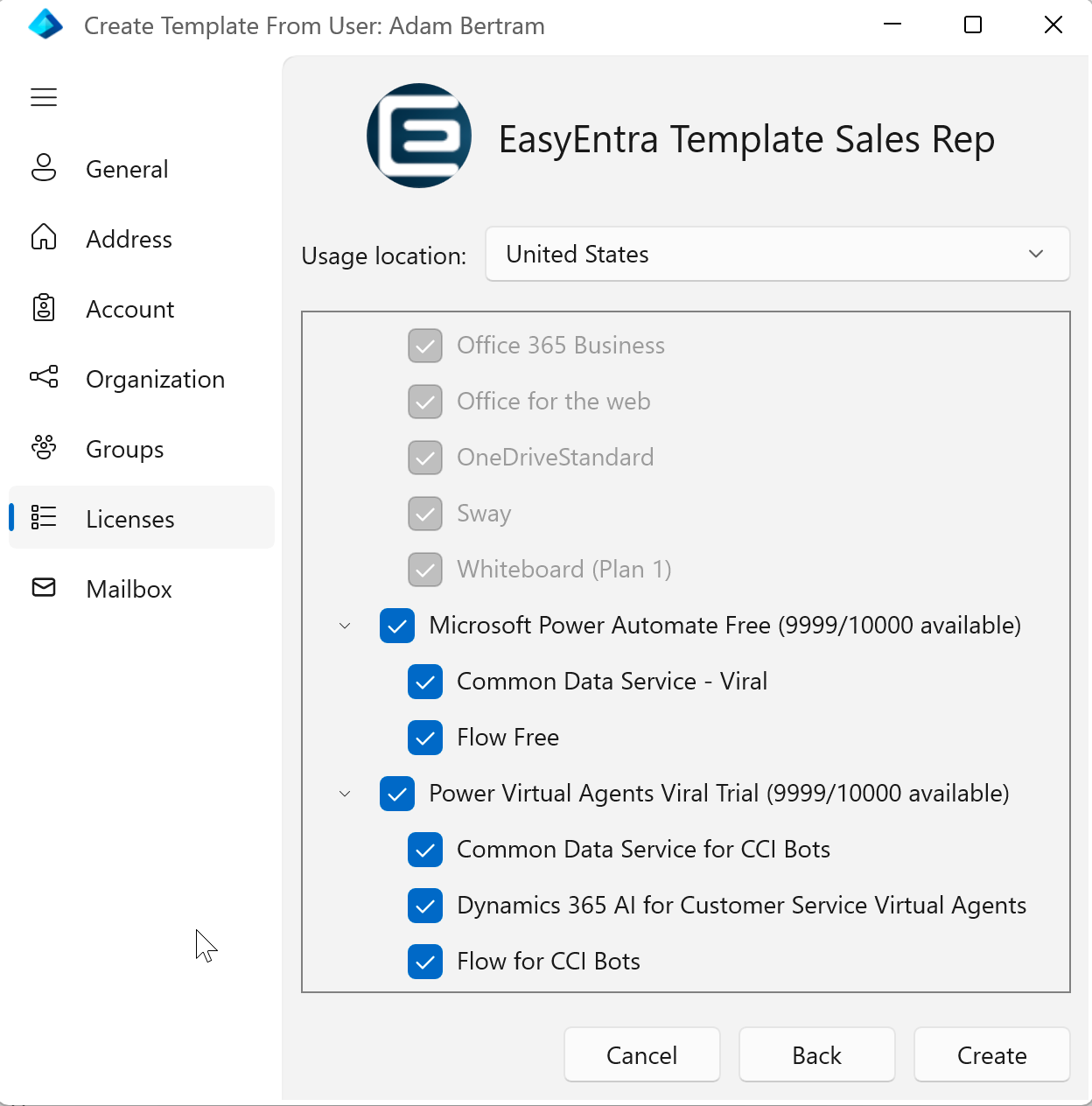
To create a template, I right-clicked an existing user that matched my desired role configuration and selected “Create Template.” The wizard prompted me to name the template (I used “Sales – US East” to indicate both function and geography) and review the properties. The template captured these attributes:
- Organization info (title, department, manager, address)
- Group memberships (both on-prem and cloud)
- License assignments
- Email format and aliases
- Mailbox settings including delegation and calendar permissions
- Profile paths including RDP profiles
- Auto-reply signatures (with automatic name substitution)
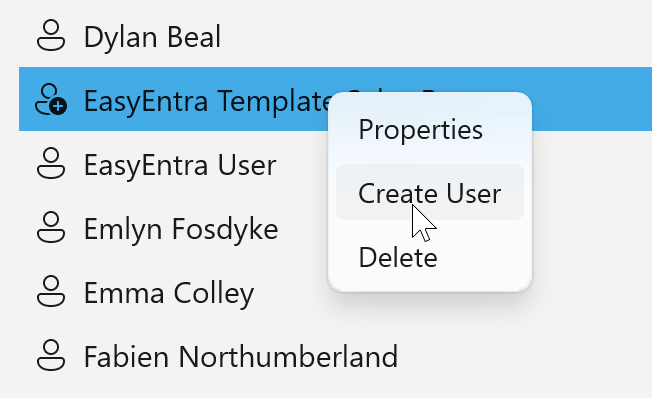
To provision a new user from the template, I right-clicked the template, selected “Create User,” and entered the display name.
EasyEntra automatically formatted the email address, UPN, and SAM account name based on the template’s logic. The whole process took about 30 seconds.
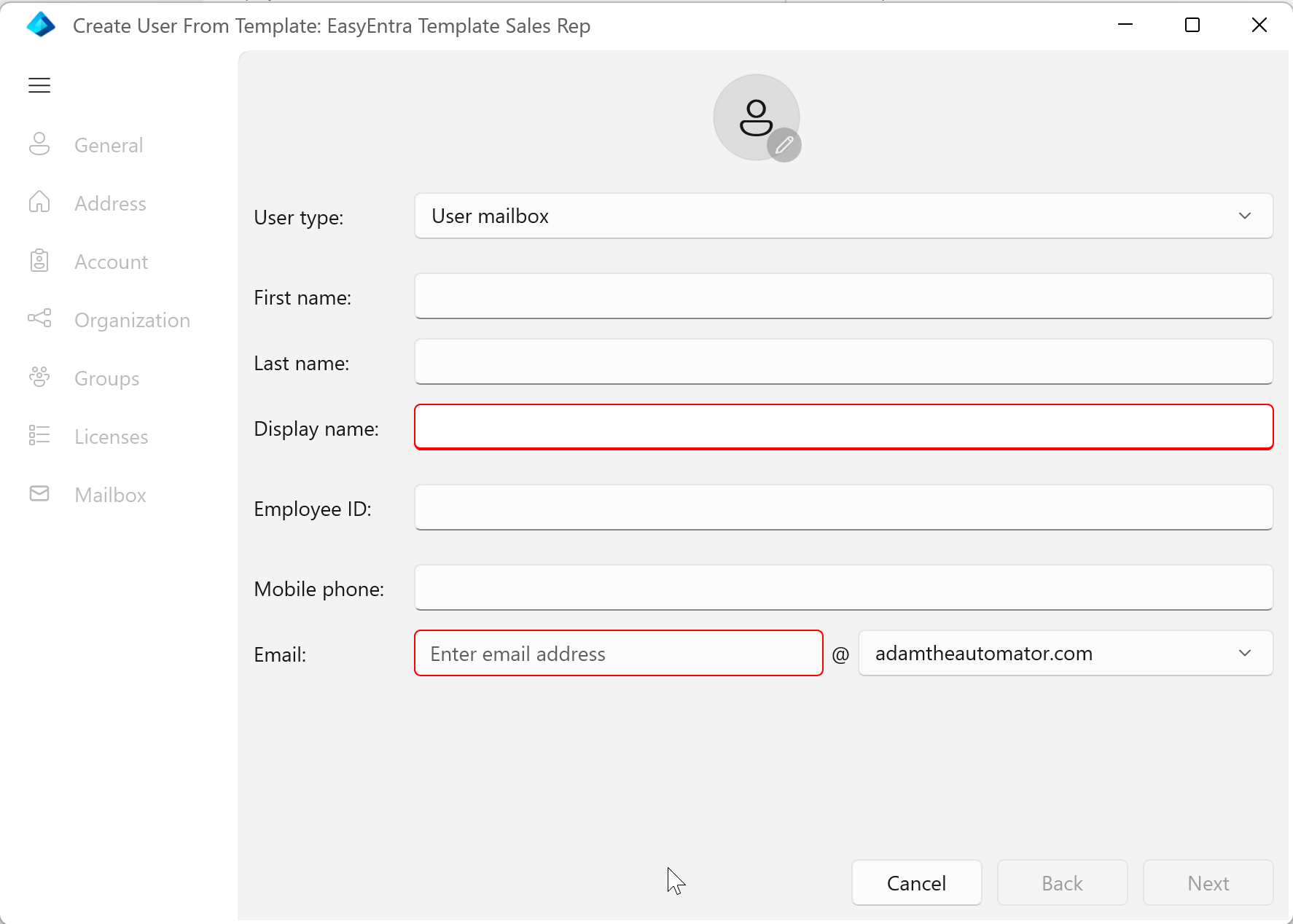
Since the template is static, users created from it should have consistent settings—assuming the template was configured correctly in the first place.
Additional Features Worth Noting
Beyond Virtual User Templates, EasyEntra includes several other capabilities worth mentioning.
Full Loading Mode is a recent addition that addresses a frustrating limitation of Microsoft’s portals—the 100-result endless scroll. EasyEntra loads all objects and attributes into memory, making them instantly searchable. I was able to quickly filter for users in the Sales department in Texas with E5 licenses, something that would normally require exporting to CSV and filtering in PowerShell.
BitLocker and LAPS Integration lets you search for recovery keys by typing just the first few digits instead of the full 32-character string. EasyEntra finds the correct key and shows the matching device.
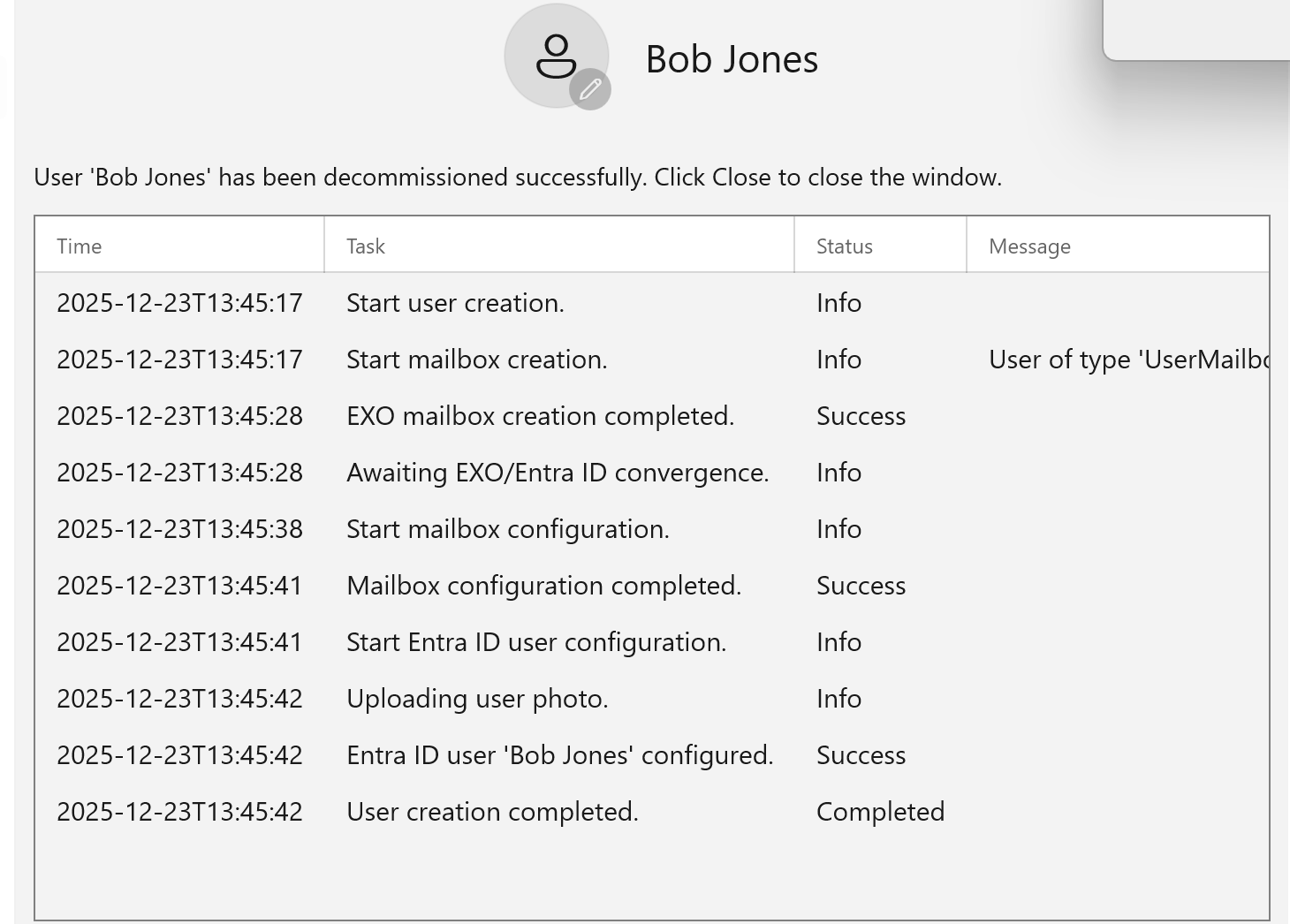
The Decommission workflow automates the security-critical steps of offboarding: disabling the account, revoking active sessions, cleaning up licenses, and converting the mailbox to shared. It also includes options to set up a delegate and clean inbox rules.
For MSPs and multi-tenant environments, EasyEntra supports managing multiple tenants in parallel. The company claims it’s the only product on the market supporting management of multiple Active Directories side-by-side.
Pricing and the Free Tier
EasyEntra is free for tenants with fewer than 25 licensed users, with all features enabled. Test tenants receive an automatic 30-day license.
The on-premises AD management module—which lets you manage mail attributes and trigger Entra Connect syncs—is free for unlimited users. This could be useful for organizations that have decommissioned Exchange Server but still need to manage hybrid mail attributes.
Licensing is per tenant, not per admin. Your entire team can share a single license, and for co-managed environments, MSPs can share the license with their clients at no additional cost.
Impressions
EasyEntra does what it claims: consolidating hybrid user management into a single interface. Virtual User Templates address the inconsistency that comes with manual user provisioning across multiple admin portals. The ability to hand off onboarding to first-line support—knowing each user will be provisioned the same way—is the main value proposition here.
I would like to see a few additions in future releases. A macOS version would be welcome for cross-platform IT teams. PowerShell integration for templates—which I understand is on the roadmap for Q1 2026—would enable automation of custom line-of-business steps during provisioning. And while the interface is familiar to ADUC users, some advanced tasks still require dropping to PowerShell or the native portals.
For hybrid environment administrators and MSPs who provision users regularly, EasyEntra addresses a real workflow gap. The company claims organizations can cut Microsoft 365 support costs by 50-75%—whether that holds true depends on your current provisioning volume and how manual your process is today.
Conclusion
If you’re managing a hybrid Active Directory and Entra ID environment, EasyEntra consolidates several admin tasks into one interface. Virtual User Templates are the main feature here—they reduce the number of steps involved in user provisioning, though you’ll still need to verify everything is configured correctly.
The free tier for tenants under 25 users makes it easy to evaluate. Download EasyEntra and test it against your current workflow.