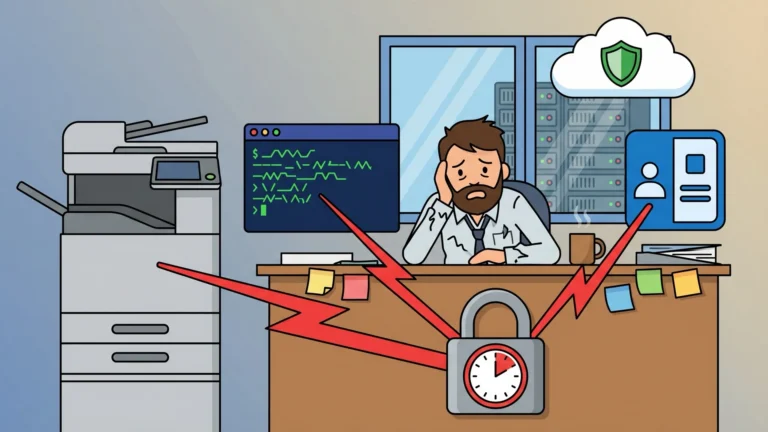


You’re scrolling through your Exchange Online tenant settings when you realize nobody has touched the SMTP AUTH configuration in three years. The scanner in the copy room is still emailing PDFs using a shared mailbox with Basic Authentication. So is the nightly inventory script your predecessor wrote in 2021. And that HR system that fires off onboarding welcome emails? Same deal.
None of this will work after Microsoft finishes its deprecation of Basic Authentication in Exchange Online. And the clock is moving faster than most IT teams realize.
What Legacy Authentication Actually Means Here
Before getting into the PowerShell commands, it helps to understand exactly what’s on the chopping block. “Legacy authentication” in the Microsoft 365 context refers to protocols that send credentials directly—a username and password with every request—instead of delegating authentication to a token-based flow like OAuth 2.0.
The critical problem with Basic Authentication is that it completely bypasses Multi-Factor Authentication (MFA). There’s no challenge step. The credentials go over the wire, the server accepts them, and your security posture takes a quiet hit. Microsoft’s own data puts this in stark terms: MFA blocks over 99.9% of account compromise attacks—which means Basic Auth leaves that door wide open.
Most legacy protocols (POP3, IMAP4, Exchange ActiveSync) were disabled in 2022. What’s left is SMTP AUTH—the mechanism that lets devices and applications send email using a username and password on TCP port 587. It’s the last door still open, and it’s used by everything from multifunction printers to line-of-business applications to PowerShell scripts running Send-MailMessage.
Here’s the timeline you’re working against:
| Date | What Changes |
|---|---|
| Now through December 2026 | No behavior changes; SMTP AUTH Basic Auth still functional where enabled |
| End of December 2026 | SMTP AUTH Basic Auth disabled by default for existing tenants; temporary re-enable still possible |
| New tenants post-December 2026 | SMTP AUTH Basic Auth unavailable; OAuth 2.0 required |
| Second half of 2027 | Microsoft announces the permanent removal date; plan for full compliance before that date |
That “temporary re-enable” window in late 2026 is not a plan. It’s a grace period for emergencies. Your plan is what you run before that date.
Pro Tip: SharePoint Online has a separate deadline. The legacy Identity Client Runtime Library (IDCRL) authentication protocol was blocked by default in early 2026, with permanent blockage shortly after. If your tenant uses SharePoint with older authentication flows, that migration is already overdue.
Prerequisites
Before running any of the scripts below, you need two PowerShell modules installed and appropriate permissions:
-
Microsoft Graph PowerShell SDK — specifically the
Microsoft.Graph.Reportsmodule -
Exchange Online Management module
-
Permissions:
AuditLog.Read.AllandDirectory.Read.Allfor Graph queries; Exchange Online admin role for transport config changes
# Install required modules
Install-Module Microsoft.Graph -Scope CurrentUser
Install-Module ExchangeOnlineManagement -Scope CurrentUser
Verify your Graph connection is working before the audit steps:
Connect-MgGraph -Scopes "AuditLog.Read.All", "Directory.Read.All"
Step 1: Find What’s Using SMTP AUTH
Guessing which systems use legacy auth is how you end up with broken printers and angry HR teams after the deadline. The right approach is to pull sign-in logs from Microsoft Entra ID (formerly Azure AD) and filter for the ClientAppUsed property.
The Microsoft Graph PowerShell SDK gives you access to sign-in audit logs via Get-MgAuditLogSignIn. One important note: this cmdlet defaults to interactive sign-ins. Printers and automated scripts authenticate non-interactively, which means you need to filter specifically for SMTP clients.
Connect-MgGraph -Scopes "AuditLog.Read.All", "Directory.Read.All"

# Query the last 7 days for SMTP AUTH usage
$StartDate = (Get-Date).AddDays(-7).ToString("yyyy-MM-ddTHH:mm:ssZ")
$EndDate = (Get-Date).ToString("yyyy-MM-ddTHH:mm:ssZ")

$Filter = "createdDateTime ge $StartDate and createdDateTime le $EndDate and " +
          "(clientAppUsed eq 'Authenticated SMTP' or clientAppUsed eq 'Other clients')"

$LegacySignIns = Get-MgAuditLogSignIn -Filter $Filter -All

$LegacySignIns | Select-Object UserDisplayName, UserPrincipalName, ClientAppUsed,
    AppDisplayName, IPAddress, CreatedDateTime | Format-Table -AutoSize
The ClientAppUsed value "Authenticated SMTP" is your direct signal. The "Other clients" value captures other legacy authentication clients—IMAP and POP3 each have their own distinct ClientAppUsed values ("IMAP4" and "POP3"), so they don’t appear here.
Key Insight: If Get-MgAuditLogSignIn times out or returns too much data on a large tenant, use server-side filtering (as shown above) rather than piping the entire result set through Where-Object. The difference in performance is not subtle.
For non-interactive sign-ins—service accounts, scripts, device flows—the beta endpoint often returns richer protocol data:
# Beta cmdlet for richer authentication protocol detail
Get-MgBetaAuditLogSignIn -Filter "createdDateTime gt $StartDate" -Top 100 |
    Select-Object AuthenticationProtocol, ClientAppUsed, UserPrincipalName |
    Where-Object { $_.ClientAppUsed -eq 'Authenticated SMTP' }
Once you have the results, map IP addresses to physical devices (print logs, device registration systems, network diagrams). Each unique UserPrincipalName is either a real user account being used as a service account (a problem in its own right) or a dedicated service mailbox.
Step 2: Verify the Current Tenant Configuration
Before making any changes, check where your tenant currently stands on SMTP AUTH configuration:
Connect-ExchangeOnline

# Check tenant-wide SMTP AUTH status
# $true = disabled, $false = enabled (yes, the naming is confusing)
Get-TransportConfig | Format-List SmtpClientAuthenticationDisabled
If SmtpClientAuthenticationDisabled returns $false, SMTP AUTH is currently enabled tenant-wide. That’s where most environments start. The goal is to get this to $true—but only after you’ve migrated every legitimate use case.
You can also check individual mailboxes:
# Check a specific mailbox
Get-CASMailbox -Identity "[email protected]" |
    Select-Object PrimarySmtpAddress, SmtpClientAuthenticationDisabled
The $null value on SmtpClientAuthenticationDisabled at the mailbox level means “respect the tenant setting.” Explicit $true or $false overrides the tenant.
| Mailbox Value | Tenant Value | Effective Result |
|---|---|---|
$null |
$false |
SMTP AUTH enabled |
$null |
$true |
SMTP AUTH disabled |
$false |
$true |
SMTP AUTH enabled (mailbox override wins) |
$true |
$false |
SMTP AUTH disabled (mailbox override wins) |
Step 3: Migrate the Legitimate Use Cases
Your audit probably turned up three categories of SMTP AUTH users: printers/scanners, application scripts, and the occasional manual Outlook client that’s been living under a rock. Each has a different migration path.
| Use Case | Current Auth | Recommended Migration |
|---|---|---|
| Multifunction printer/scanner | Basic Auth on port 587 | Firmware update to OAuth, or SMTP Direct Send on port 25 |
PowerShell scripts (Send-MailMessage) |
Basic Auth via SMTP | Rewrite using Send-MgUserMail with service principal |
| Bulk internal notifications | Basic Auth on port 587 | High Volume Email (HVE) with OAuth 2.0 |
| External relay (apps sending to outside addresses) | Basic Auth on port 587 | Exchange Online Connector with TLS from static IP |
Multifunction printers and scanners: Check the device manufacturer’s firmware update history. Most major vendors (Xerox, Canon, Konica Minolta) have released or are releasing OAuth 2.0 firmware support updates. If your device can be updated, that’s the cleanest path. If it can’t, configure it to use SMTP Direct Send—pointing the device at your Exchange Online MX endpoint on port 25 with no authentication required; Microsoft accepts Direct Send from any IP address, but to avoid spam filtering, add your sending IP to your domain’s SPF record. (If you need to relay to external addresses, that’s SMTP Relay via an Exchange Online Connector, which uses IP-based authentication.)
-
Update device firmware to OAuth 2.0 (preferred)
-
Configure SMTP Direct Send via MX endpoint (no authentication required)
-
Set up a dedicated Exchange Online Connector for relay from a static public IP
PowerShell scripts using Send-MailMessage: This cmdlet is officially deprecated. Rewrite these scripts to use the Microsoft Graph API via Send-MgUserMail, authenticated with a certificate-backed service principal. It’s more work up front, but it’s the correct architecture.
High-volume internal notifications (system alerts, automated reports, HR system emails): Microsoft introduced High Volume Email (HVE) as a dedicated channel for this. HVE accounts support OAuth 2.0 and handle bulk internal traffic without consuming your standard tenant limits. When configuring HVE, use the current recommended endpoint smtp.hve.mx.microsoft—the older smtp-hve.office365.com endpoint is marked for deprecation. One constraint to know: HVE supports internal recipients only—it cannot relay to external addresses.
Warning: HVE accounts have their own extended timeline for Basic Auth support (until September 2028), but that’s not a reason to use it as a stopgap. Any new implementation you build now should use OAuth 2.0. Migrate to modern auth once, not twice.
Step 4: Lock It Down
Once every legitimate SMTP AUTH user has been migrated—and you’ve tested that the migrations actually work—you can enforce the block.
Start with per-mailbox disablement for any service accounts you explicitly identified:
# Disable SMTP AUTH for all mailboxes (belt-and-suspenders)
Get-Mailbox -ResultSize Unlimited | ForEach-Object {
    Set-CASMailbox -Identity $_.Identity -SmtpClientAuthenticationDisabled $true
}
Then lock it down at the tenant level:
# Disable SMTP AUTH for the entire tenant
Set-TransportConfig -SmtpClientAuthenticationDisabled $true

# Verify the change
Get-TransportConfig | Format-List SmtpClientAuthenticationDisabled
If you have one or two legacy devices that genuinely cannot be updated yet, grant exceptions narrowly:
# Re-enable SMTP AUTH for a specific mailbox only
Set-CASMailbox -Identity "[email protected]" -SmtpClientAuthenticationDisabled $false

# Verify the exception is set
Get-CASMailbox -Identity "[email protected]" |
    Select-Object PrimarySmtpAddress, SmtpClientAuthenticationDisabled
Document every exception. You’ll need to revisit these before Microsoft announces the final enforcement date in the second half of 2027.
Step 5: Monitor for Stragglers
After enforcement, clients still attempting Basic Auth will receive SMTP error 550 5.7.30 Basic authentication is not supported for Client Submission. That error is your signal that something got missed.
The Exchange Admin Center’s SMTP AUTH Clients report—under Reports > Mail Flow—shows active SMTP AUTH usage and distinguishes between Basic and OAuth submissions. Check it a week after enforcement. Anything still showing Basic Auth needs investigation.
For ongoing Conditional Access coverage, you can audit whether your tenant has policies blocking legacy auth across all protocols—not just SMTP:
# Check for Conditional Access policies targeting legacy auth clients
Get-MgIdentityConditionalAccessPolicy |
    Where-Object { $_.Conditions.ClientAppTypes -contains "other" } |
    Select-Object DisplayName, State
A properly scoped Conditional Access policy targeting “Other clients” and “Exchange ActiveSync clients” covers the legacy auth surface holistically. It’s the belt that pairs with your transport config suspenders.
What Comes Next
The remediation path isn’t complicated—it’s audit, migrate, enforce, monitor. What makes it take time is the archaeology: finding every device and application that assumes SMTP AUTH will always be there, because nobody updated the documentation when they set it up.
Start the audit now. Sign-in logs go back 30 days for tenants with Entra ID P1 or P2 licenses; free tier tenants retain only 7 days of data—which means you won’t have full visibility if you wait until the month before the deadline. Run Get-MgAuditLogSignIn today, build the list, and work through it methodically.
By December 2026, your tenant should already be locked down—not scrambling because the deadline arrived and the scanner in the copy room stopped working.