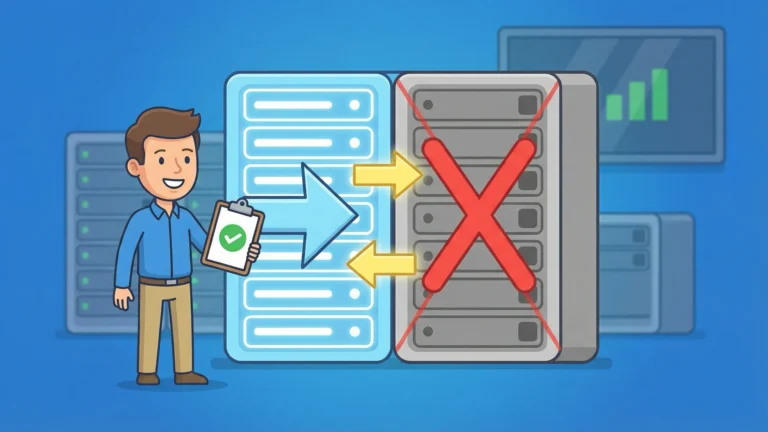


You deployed your production workload to Azure. Everything runs smoothly until one Tuesday afternoon when an availability zone goes offline. Your file storage—the volumes holding SAP HANA data, Oracle databases, and shared NFS mounts—becomes unreachable. By the time you realize the extent of the outage, recovery becomes the executive team’s problem.
Azure NetApp Files cross-zone replication (CZR) addresses this precise failure scenario. It asynchronously replicates volumes between availability zones within the same Azure region. When a zone fails, you fail over to the replica. No data loss beyond your recovery point objective (RPO), and—critically—no network transfer fees.
What Cross-Zone Replication Actually Does
Cross-zone replication creates a read-only copy of your source volume in a different availability zone. Azure availability zones are physically separate datacenters within a single region, each with independent power, cooling, and networking. If Zone 1 experiences a catastrophic failure, your replica in Zone 2 remains operational.
The replication uses NetApp SnapMirror technology, which transfers only changed blocks rather than entire files. This block-level approach minimizes bandwidth consumption and shortens replication windows. The destination volume stays read-only until you break the replication relationship during a failover.
| Feature | Cross-Zone Replication | Cross-Region Replication |
|---|---|---|
| Scope | Same region, different zones | Different Azure regions |
| Network Transfer Cost | None | Per-GiB charge |
| Primary Use Case | High availability against zonal failures | Geographic disaster recovery |
| Latency | Lower (intra-region) | Higher (inter-region) |
Cross-zone replication provides the middle ground between local redundancy and full regional failover. You protect against datacenter-level disasters without incurring the bandwidth costs of cross-region replication.
Pro Tip: The “Zone 1” you select in the Azure Portal is a logical identifier, not a physical location. Azure maps logical zones to physical datacenters dynamically for each subscription. This prevents customers from clustering resources in the same physical zone by accident.
Prerequisites
Before configuring cross-zone replication, verify your environment meets these requirements:
Feature registration: The Availability Zone Volume Placement feature must be registered in your subscription. Register it via Azure CLI:
az feature register --namespace Microsoft.NetApp --name ANFAvailabilityZone
Check registration status:
az feature show --namespace Microsoft.NetApp --name ANFAvailabilityZone
Wait until the status shows Registered before proceeding. This typically takes a few minutes.
Regional support: Not all Azure regions support availability zones. Verify your target region has multiple zones with Azure NetApp Files available. Check the Azure NetApp Files regional availability page.
Azure NetApp Files account and capacity pool: You need an existing NetApp account and at least one capacity pool in the source zone. If you haven’t created these yet, follow the Azure NetApp Files quickstart.
Delegated subnets: Each availability zone requires a delegated subnet for Azure NetApp Files. The destination subnet must have sufficient free IP addresses. For NFS and SMB volumes, plan for at least four IPs per volume.
Protocol-specific requirements:
-
SMB volumes: Both source and destination NetApp accounts require Active Directory connections. The destination AD connection must have DNS reachability to domain controllers from the delegated subnet.
-
Dual-protocol volumes: You must authorize replication before the initial baseline transfer begins.
Create the Source Volume
Your source volume lives in the primary availability zone and contains the production data you want to replicate. Getting the parameters right here saves you from recreating the volume later—and yes, that happens more often than anyone admits.
Create the volume using Azure CLI:
az netappfiles volume create \
  --resource-group myResourceGroup \
  --account-name myNetAppAccount \
  --pool-name myCapacityPool \
  --name sourceVolume \
  --location eastus \
  --service-level Premium \
  --usage-threshold 1024 \
  --protocol-types NFSv3 \
  --subnet-id "/subscriptions/<subscription-id>/resourceGroups/myResourceGroup/providers/Microsoft.Network/virtualNetworks/myVnet/subnets/mySubnet-zone1" \
  --zone 1
Key parameters:
-
--zone 1: Places the volume in availability zone 1. This is a logical zone identifier. -
--service-level Premium: Determines the performance tier. Choose Standard, Premium, or Ultra based on your workload requirements. -
--protocol-types NFSv3: Specifies the file protocol. UseCIFSfor SMB or include both for dual-protocol.
Reality Check: If a zone appears grayed out or unavailable in the Portal, it means Azure NetApp Files doesn’t have capacity provisioned in that zone for your subscription. Open a support ticket to request capacity.
Verify the volume was created:
az netappfiles volume show \
  --resource-group myResourceGroup \
  --account-name myNetAppAccount \
  --pool-name myCapacityPool \
  --name sourceVolume
Note the id field in the output. You’ll need this resource ID when creating the replication relationship.
Configure the Destination Volume
The destination volume acts as your replication target. It must reside in a different availability zone within the same region. Think of this as your insurance policy—you’re paying for capacity you hope you never need to activate.
Create the destination volume with replication configuration:
az netappfiles volume create \
  --resource-group myResourceGroup \
  --account-name myNetAppAccount \
  --pool-name myCapacityPool \
  --name destinationVolume \
  --location eastus \
  --service-level Premium \
  --usage-threshold 1024 \
  --protocol-types NFSv3 \
  --subnet-id "/subscriptions/<subscription-id>/resourceGroups/myResourceGroup/providers/Microsoft.Network/virtualNetworks/myVnet/subnets/mySubnet-zone2" \
  --zone 2 \
  --replication-schedule _10minutely \
  --remote-volume-resource-id "/subscriptions/<subscription-id>/resourceGroups/myResourceGroup/providers/Microsoft.NetApp/netAppAccounts/myNetAppAccount/capacityPools/myCapacityPool/volumes/sourceVolume"
Critical parameters:
-
--zone 2: Places the volume in a different zone than the source. -
--replication-schedule _10minutely: Sets the replication frequency. Options include_10minutely,hourly, anddaily. -
--remote-volume-resource-id: The full resource ID of the source volume.
| Schedule | Typical RPO | Notes |
|---|---|---|
| 10 minutes | < 20 minutes | Tightest synchronization. Not supported for Large Volumes (> 50 TiB). |
| Hourly | < 2 hours | Standard balance for critical workloads. |
| Daily | < 2 days | Suitable for static datasets or archival data. |
The 10-minute schedule offers the lowest RPO but requires sufficient bandwidth to transfer all changed blocks within the window. For volumes with high change rates or large sizes, consider hourly replication to avoid replication lag.
Check replication status:
az netappfiles volume replication status \
  --resource-group myResourceGroup \
  --account-name myNetAppAccount \
  --pool-name myCapacityPool \
  --name destinationVolume
Initial status shows Uninitialised. After the baseline transfer completes, status changes to Mirrored.
Key Insight: The destination volume remains read-only while replication is active. You cannot mount it for writes until you break the replication relationship during failover. This prevents split-brain scenarios where both volumes accept writes simultaneously.
Monitor Replication Health
You don’t want to discover your replication is broken during the outage that makes you need it. Regular monitoring ensures the relationship stays healthy and your data remains protected.
Check the replication relationship:
az netappfiles volume replication status \
  --resource-group myResourceGroup \
  --account-name myNetAppAccount \
  --pool-name myCapacityPool \
  --name destinationVolume \
  --query "{status:mirrorState, lagTime:lagTime, lastTransferSize:lastTransferSize}"
Expected output:
{
  "status": "Mirrored",
  "lagTime": "00:05:23",
  "lastTransferSize": 1048576
}
| Metric | Healthy Value | What It Tells You |
|---|---|---|
mirrorState |
Mirrored |
Replication is active and current. Other states: Uninitialised, Broken, Uninitialized. |
lagTime |
Below your target RPO | Time since the source’s last write was replicated. If this creeps up, you’re losing protection. |
lastTransferSize |
Varies | Bytes transferred in the most recent update. Spikes mean high change rates on your source. |
If mirrorState shows anything other than Mirrored during steady state, investigate immediately. Don’t wait for the next business day—replication lag during a zone failure means data loss. Common causes include network connectivity issues, insufficient bandwidth, or the source volume exceeding 95% capacity utilization. The replication health monitoring documentation covers additional diagnostic steps.
Test Failover
Testing failover validates your disaster recovery procedures before an actual zone failure. This step confirms the destination volume contains usable data and your mount procedures work correctly. If you skip this, you’re trusting that everything works without evidence—and that trust has a shelf life.
Break the replication relationship to activate the destination volume:
az netappfiles volume replication suspend \
  --resource-group myResourceGroup \
  --account-name myNetAppAccount \
  --pool-name myCapacityPool \
  --name destinationVolume
This command stops replication and converts the destination volume from read-only to read-write. The operation completes in approximately one minute.
Verify the volume is now writable:
az netappfiles volume show \
  --resource-group myResourceGroup \
  --account-name myNetAppAccount \
  --pool-name myCapacityPool \
  --name destinationVolume \
  --query "{name:name, provisioningState:provisioningState}"
Mount the destination volume from a virtual machine in Zone 2:
sudo mkdir -p /mnt/anf-destination
sudo mount -t nfs -o rw,hard,rsize=1048576,wsize=1048576,vers=3 10.0.2.4:/destinationVolume /mnt/anf-destination
Replace 10.0.2.4 with the actual mount IP address from the volume’s properties. You can retrieve it with az netappfiles volume show and check the mountTargets array in the output.
Write a test file to confirm write access:
echo "Failover test $(date)" | sudo tee /mnt/anf-destination/test.txt
cat /mnt/anf-destination/test.txt
If the write succeeds, your failover procedures work. Document the exact steps and timing for your disaster recovery runbook.
Warning: Breaking replication during a test requires manual resynchronization to resume protection. Plan your tests during maintenance windows to avoid leaving volumes unprotected.
Resume Replication After Testing
Your volumes are sitting unprotected right now. The longer you wait to resume replication, the bigger your exposure window. Don’t let this step slide to “after lunch.”
Resync the volumes:
az netappfiles volume replication resume \
  --resource-group myResourceGroup \
  --account-name myNetAppAccount \
  --pool-name myCapacityPool \
  --name destinationVolume
This command performs a reverse resync, making the destination volume read-only again and resuming scheduled replication. Changed blocks are transferred back to align with the source.
Verify replication has resumed:
az netappfiles volume replication status \
  --resource-group myResourceGroup \
  --account-name myNetAppAccount \
  --pool-name myCapacityPool \
  --name destinationVolume
Wait until mirrorState returns to Mirrored before considering your volumes protected again. If the resync takes longer than expected, check whether the test writes added significant data that needs to be reconciled.
Cost Implications
One of the defining advantages of cross-zone replication over cross-region replication is the absence of network transfer fees. Data replication between availability zones within the same region incurs no bandwidth charges.
What you pay for:
-
Provisioned capacity of the destination volume, based on the capacity pool tier (Standard, Premium, Ultra).
-
Storage snapshots retained on the destination volume beyond the automatic SnapMirror snapshots.
What you don’t pay for:
-
Data transfer between zones.
-
Replication operations themselves.
You can optimize costs by placing the destination volume in a lower-tier capacity pool. For example, replicate from a Premium pool in Zone 1 to a Standard pool in Zone 2. During normal operation, the Standard tier provides sufficient performance for replication. If you fail over, you can migrate the volume to a Premium pool in Zone 2 for production performance.
Limitations to Understand
Cross-zone replication works well for most scenarios but has specific constraints you should evaluate against your requirements.
No automatic failover: CZR requires manual intervention to break replication and activate the destination volume. There is no automated health check or failover trigger. You must detect zone failures through your monitoring systems and execute failover commands manually.
Read-only destination: The destination volume cannot be used for production reads or writes while replication is active. Some disaster recovery strategies rely on active-active configurations or read replicas. CZR supports neither.
Large Volume schedule restrictions: Volumes between 50 TiB and 1,024 TiB (Large Volumes) cannot use the 10-minute replication schedule. Only hourly and daily schedules are supported due to the time required to transfer changed blocks.
Topology limitations: Complex replication topologies like fan-in (multiple sources to one destination) and cascading (A → B → C) are not supported. You can replicate one source to one cross-zone destination and one cross-region destination simultaneously, but not to multiple cross-zone destinations.
Volume utilization threshold: If a volume exceeds 95% capacity utilization, replication operations may fail. SnapMirror requires free space to process snapshots and transfer blocks. Monitor volume usage and expand capacity before hitting this threshold.
When to Use Cross-Zone Replication
Cross-zone replication is purpose-built for high availability scenarios where you need protection against zone-level failures but don’t require geographic disaster recovery.
Use CZR when:
-
You need RPO under 20 minutes for file storage.
-
Your compliance requirements mandate data residency within a specific region.
-
You want to avoid the bandwidth costs of cross-region replication.
-
Your application can tolerate manual failover with RTO measured in minutes.
Use cross-region replication instead when:
-
You need protection against total region failure (natural disaster, widespread outage).
-
Compliance requires data copies in multiple geographies.
-
Your disaster recovery plan includes geographic failover for business continuity.
For workloads requiring both zonal and regional protection, Azure NetApp Files supports cross-zone-region replication, which replicates one source volume to both a cross-zone destination and a cross-region destination simultaneously.
Next Steps
Cross-zone replication protects your file storage against availability zone failures with minimal cost and configuration complexity. The manual failover process requires discipline, but the absence of network transfer fees makes CZR a cost-effective high availability solution.
Test your failover procedures regularly. The difference between a documented runbook and a tested runbook becomes obvious during an actual outage. Schedule quarterly failover tests, measure your actual RTO, and refine the process until it becomes routine.
For SAP HANA or Oracle workloads, review the application-specific guidance for integrating CZR with application-consistent snapshots and log backup replication. File-level replication alone doesn’t guarantee database consistency without coordinating with application quiesce operations.