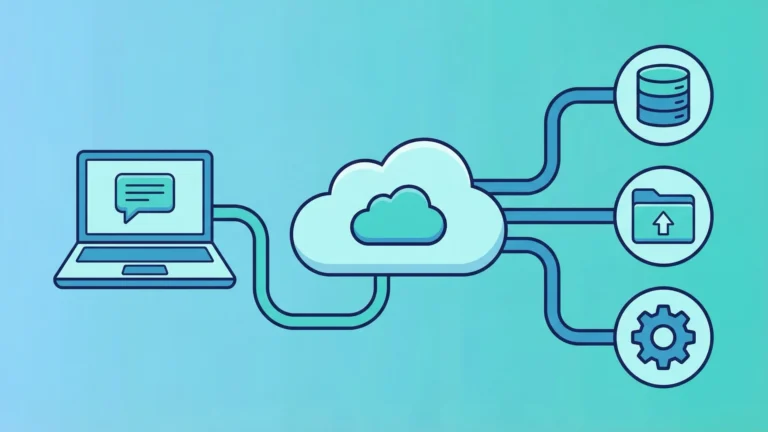


Your MCP server works perfectly on your laptop. You can query databases, call APIs, and retrieve context for your AI tools without breaking a sweat. Then someone on your team asks to use it. Now what?
Running MCP servers locally is fine for solo work, but the moment you need shared access, centralized management, or tools that outlive your laptop’s uptime, you need remote hosting. Azure gives you the infrastructure to turn that localhost server into a production service your entire team can use.
What MCP Actually Does
The Model Context Protocol is an open standard that connects AI applications to external data and tools. Instead of writing custom integrations for every AI client, you build one MCP server that exposes tools, resources, and prompts. Any MCP-compatible client—such as Claude Desktop and VS Code with GitHub Copilot—can connect and use what you’ve built.
Locally, that server runs as a subprocess on your machine. Remotely, it’s a web service that clients connect to over HTTP.
| Local MCP | Remote MCP |
|---|---|
| stdio transport | HTTP/SSE transport |
| Single user | Multi-user |
| No authentication | Requires auth |
| Dies when laptop closes | Always available |
The protocol defines three primitives: Tools (functions the AI can execute), Resources (data the AI can read), and Prompts (templates the AI can use). Your server implements these, and the client handles when to invoke them.
Why Azure for Remote MCP Servers
You could host an MCP server anywhere, but Azure offers specific services designed for this workload. Azure Container Apps and Azure App Service both support the long-lived HTTP connections and Server-Sent Events that MCP requires. Azure Functions can work too, with some caveats around connection duration.
Reality Check: “Cloud-hosted” doesn’t mean “maintenance-free.” You’re trading laptop uptime problems for timeout configuration problems. Pick your infrastructure headaches wisely.
The primary reason to use Azure is integration. If your MCP tools need to query Azure SQL Database, call Azure OpenAI, or read from Azure Blob Storage, hosting the server on Azure means you can use Managed Identities instead of juggling connection strings and API keys.
You’re also getting built-in logging through Application Insights, automatic scaling, and HTTPS endpoints that don’t require you to expose your home router to the internet.
Azure Compute Options
Three Azure services work well for MCP hosting. Each has distinct trade-offs around scaling, timeout handling, and configuration complexity.
Azure Container Apps
Azure Container Apps is the most flexible option. It’s a serverless container platform built on Kubernetes, which means you get dynamic scaling and “scale-to-zero” pricing when the server isn’t in use.
Why it works for MCP:
-
Native support for HTTP/1.1 and HTTP/2 connections
-
External ingress allows remote clients to connect
-
Session affinity keeps stateful connections alive (though stateless is better)
-
Idle billing—you pay a reduced rate when scaled to minimum replicas but not processing requests
Deploying to Container Apps requires setting ingress to “External” so clients outside Azure can reach your server. The default internal ingress only allows connections from within the same Container Apps environment, which won’t help your local AI client.
az containerapp create \
  --name mcp-server \
  --resource-group my-rg \
  --environment my-env \
  --image myregistry.azurecr.io/mcp-server:latest \
  --target-port 8000 \
  --ingress external \
  --transport http
| Configuration | Value | Why |
|---|---|---|
| Ingress | External | Allows internet access |
| Target Port | 8000 (or app port) | Container listening port |
| Transport | HTTP or Auto | Auto attempts protocol detection |
The transport setting matters. HTTP/1.1 works for simple request-response patterns. HTTP/2 handles multiplexing better if your MCP server needs to stream multiple tool results simultaneously. The transport can be set to auto to attempt automatic detection, though there are documented issues where auto detection may not work as expected and defaults to HTTP/1.1.
Azure App Service
Azure App Service is a Platform-as-a-Service offering optimized for web applications. It supports Python, Node.js, and .NET natively, which covers most MCP SDK implementations.
The timeout problem: Azure’s load balancer enforces a 230-second (roughly 4-minute) idle timeout. If your MCP tool executes for longer than that without sending data back to the client, the connection drops. For quick tools—database queries, API calls that return in seconds—this isn’t an issue. For long-running operations, you need heartbeat signals.
Pro Tip: If your tool processes large datasets or calls slow external APIs, send periodic status updates to the client. Even a simple “still working” message every 30 seconds resets the load balancer timer.
SSE buffering: Azure App Service works if you’re already standardized on it or need specific runtime integrations. The critical constraint: use Linux plans only. App Service on Windows buffers HTTP responses by default, which breaks SSE—the transport mechanism many MCP implementations use for server-to-client streaming. Linux plans don’t buffer by default, but you’ll still need to configure keep-alive signals to prevent the Azure Load Balancer’s 230-second idle timeout from killing long-running tool executions.
For a Python FastAPI MCP server, your startup command might look like:
uvicorn main:app --host 0.0.0.0 --port 8000
Set this in the App Service Configuration blade under “Startup Command.”
Azure Functions
Azure Functions offers an event-driven, serverless model. The Azure Functions MCP extension exposes functions directly as MCP tools using triggers, with support for .NET, Java, JavaScript, Python, and TypeScript.
The [McpToolTrigger] attribute in C#/.NET automatically maps a function to an MCP tool definition, abstracting the protocol details. You write the business logic, and the runtime handles JSON-RPC message routing.
[Function("QueryDatabase")]
public async Task<string> QueryDatabase(
    [McpToolTrigger] string query)
{
    // Your database logic here
    return result;
}
When this works: Quick, stateless operations that complete in under the function timeout. The Consumption plan allows 5-10 minutes, while Premium and Dedicated plans offer much longer execution times. Database queries, file transformations, API calls to external services.
When it doesn’t: Long-lived connections where the client expects continuous updates. Functions aren’t designed for persistent HTTP connections.
Transport Protocols and Connection Handling
MCP supports multiple transport mechanisms. The choice affects how you configure your Azure service.
stdio (Local Only)
The default for local servers. The client spawns your server as a subprocess and communicates via standard input and output. This doesn’t apply to remote Azure hosting, but it’s the baseline everyone starts with—and probably what you’re using right now.
HTTP with Server-Sent Events (Legacy)
Early MCP implementations used a combination of HTTP POST (client to server) and Server-Sent Events (server to client). You’d expose two endpoints:
-
/messagesfor receiving messages from the client -
/ssefor streaming messages to the client
This works but has reliability issues. The SSE connection needs to stay open, which conflicts with Azure’s 4-minute idle timeout. You’d implement heartbeats to keep it alive, but the connection can still drop if network conditions change.
Streamable HTTP
The Model Context Protocol specification defines “Streamable HTTP” as a transport option for remote servers. It unifies client-server communication into a single endpoint (e.g., /mcp).
How it works:
-
Client sends HTTP POST requests with JSON-RPC messages
-
Server responds in the HTTP body for synchronous operations
-
For streaming or async notifications, the server upgrades the response to SSE
This is more reliable over unstable networks because it doesn’t require a persistent connection for every interaction. If the connection drops, the client can reconnect and use the Mcp-Session-Id header to resume the session.
Your FastAPI implementation might look like this:
import asyncio
from fastapi import FastAPI, Request
from fastapi.responses import StreamingResponse

app = FastAPI()

@app.post("/mcp")
async def mcp_endpoint(request: Request):
    message = await request.json()
    # Process JSON-RPC message
    response = handle_message(message)
    return response

@app.get("/mcp")
async def mcp_sse_endpoint(request: Request):
    # SSE stream for server-initiated messages
    async def event_stream():
        while True:
            yield f"data: {get_server_message()}\n\n"
            await asyncio.sleep(30)  # Heartbeat
    return StreamingResponse(event_stream(), media_type="text/event-stream")
The POST handler processes tool invocations. The GET handler keeps an SSE stream open for server-initiated notifications, with a 30-second heartbeat to prevent Azure’s load balancer from dropping the connection.
Configuring Server-Sent Events on Azure
If your MCP server uses SSE (either legacy or as part of Streamable HTTP), Azure’s networking infrastructure needs specific configuration.
Response Buffering
Azure Application Gateway and some App Service configurations buffer HTTP responses before sending them to clients. For SSE, buffering must be disabled because the client expects data to stream as it’s generated.
Required headers:
{
    "Content-Type": "text/event-stream",
    "Cache-Control": "no-cache",
    "Connection": "keep-alive",
    "X-Accel-Buffering": "no"  # Disable Nginx buffering
}
If using Application Gateway, set buffer-response="false" in the gateway policy.
Heartbeat Implementation
Azure’s load balancer drops idle connections after 4 minutes. Your SSE stream must send data at least once every 3-4 minutes to reset this timer.
A heartbeat is just a comment line in the SSE stream:
async def event_stream():
    while True:
        if has_message():
            yield f"data: {get_message()}\n\n"
        else:
            yield ": keepalive\n\n"  # Comment line, ignored by client
        await asyncio.sleep(30)
The client’s SSE parser ignores lines starting with :, so this doesn’t interfere with actual messages.
| Problem | Cause | Solution |
|---|---|---|
| Connection drops after 4 min | Load balancer idle timeout | Heartbeat every 30s |
| Client never receives events | Response buffering | Disable buffering, set headers |
| Events arrive in batches | Buffering at proxy layer | Check Application Gateway config |
Authentication and Security
Unlike local MCP servers, remote servers are exposed to the internet and require authentication. The MCP specification doesn’t mandate a specific method, but two patterns dominate.
API Key Authentication
The simplest approach. The client sends a secret key in an HTTP header, and the server validates it before processing messages.
Server-side middleware:
from fastapi import Header, HTTPException

async def verify_api_key(x_api_key: str = Header(None)):
    if x_api_key != os.environ["EXPECTED_API_KEY"]:
        raise HTTPException(status_code=401, detail="Invalid API key")
Store the key in Azure Key Vault or App Service Application Settings (environment variables). Don’t hardcode it in your container image.
Client-side configuration (VS Code mcp.json):
{
  "mcpServers": {
    "azure-server": {
      "type": "http",
      "url": "https://my-mcp-app.azurecontainerapps.io/mcp",
      "headers": {
        "X-API-Key": "${input:apiKey}"
      }
    }
  }
}
The ${input:apiKey} variable prompts the user for the key instead of storing it in the config file.
OAuth 2.0
For enterprise scenarios, OAuth 2.0 is the standard. The MCP client initiates an OAuth flow, receives a token, and includes it in the Authorization header.
Azure Functions and App Service support “Easy Auth” (App Service Authentication), which handles the OAuth flow automatically. You configure it to use Microsoft Entra ID (formerly Azure AD), and the service validates tokens before requests reach your application code.
Key Insight: OAuth is overkill for single-user tools. If you’re the only person using this MCP server, an API key is sufficient. Save OAuth for when you need per-user permissions or integration with corporate identity providers.
Deployment Automation
Manually creating Azure resources through the portal works once. For production, automate it.
Azure Developer CLI
Microsoft provides Azure Developer CLI (azd) templates specifically for MCP servers. Running azd up provisions the resource group, container app or app service, and deploys your code in one command.
azd init --template mcp-azure-container-app
azd up
This handles:
-
Creating the Container Apps environment
-
Setting up Application Insights for logging
-
Deploying the container image
-
Configuring ingress and environment variables
Bicep and Infrastructure as Code
For more control, use Bicep or ARM templates. Define your infrastructure declaratively, version it in Git, and deploy consistently across environments.
Here’s a minimal Bicep template for the Container App deployment:
resource mcpApp 'Microsoft.App/containerApps@2023-05-01' = {
  name: 'mcp-server'
  location: location
  properties: {
    environmentId: environment.id
    configuration: {
      ingress: {
        external: true
        targetPort: 8000
        transport: 'http'
      }
      secrets: [
        {
          name: 'api-key'
          value: apiKeySecret
        }
      ]
    }
    template: {
      containers: [
        {
          name: 'mcp-server'
          image: 'myregistry.azurecr.io/mcp-server:latest'
          env: [
            {
              name: 'API_KEY'
              secretRef: 'api-key'
            }
          ]
        }
      ]
    }
  }
}
This creates a container app with external ingress, injects the API key as a secret, and configures the container to listen on port 8000.
Environment Variables and Managed Identities
Your MCP server likely needs to access other Azure resources—databases, storage, AI services. The old way is connection strings stored as environment variables. The better way is Managed Identities.
Managed Identity Setup
Enable a system-assigned managed identity on your App Service or Container App. This gives your application an identity in Microsoft Entra ID without storing credentials.
Let’s say your MCP server needs to query Azure SQL Database. Instead of hardcoding a SQL connection string (which includes credentials), assign a Managed Identity to your Container App:
az containerapp identity assign \
  --name mcp-server \
  --resource-group my-rg \
  --system-assigned
Grant that identity access to the target resource:
az role assignment create \
  --assignee <managed-identity-id> \
  --role "Storage Blob Data Reader" \
  --scope /subscriptions/<sub-id>/resourceGroups/<rg>/providers/Microsoft.Storage/storageAccounts/<account>
Your application code uses the identity automatically:
from azure.identity import DefaultAzureCredential
from azure.storage.blob import BlobServiceClient

credential = DefaultAzureCredential()
blob_client = BlobServiceClient(account_url="https://myaccount.blob.core.windows.net", credential=credential)
No connection strings. No keys in environment variables. The SDK retrieves a token using the managed identity.
| Method | Security | Management Overhead |
|---|---|---|
| Connection strings | Low (secrets in env vars) | High (rotate manually) |
| Managed Identity | High (no stored credentials) | Low (Azure handles it) |
Monitoring and Debugging
When your MCP server runs on Azure, you can’t just check the terminal for errors. You need structured logging.
Application Insights captures logs, traces, and telemetry automatically if you enable it during deployment. Your server writes to stdout, and Azure routes those logs to Application Insights.
import logging

logger = logging.getLogger(__name__)
logger.info("Processing MCP tool request: query_database")
In the Azure portal, query logs using Kusto:
traces
| where message contains "MCP tool"
| order by timestamp desc
| take 50
For local testing before deploying to Azure, use the MCP Inspector. It’s a debugging tool that connects to your MCP server and lets you invoke tools manually, inspect responses, and verify authentication headers.
npx @modelcontextprotocol/inspector https://my-mcp-app.azurecontainerapps.io/mcp
This opens a web interface where you can test tool invocations without involving an AI client.
Common Failure Modes and Fixes
When deploying MCP servers to Azure, you’ll encounter predictable failure patterns related to streaming connections, timeouts, and authentication. Here’s what breaks and how to fix it:
- The Buffering Problem
- Symptom: Your AI client hangs waiting for a tool result, eventually timing out.
- Cause: Azure App Service or Application Gateway is buffering the SSE stream, waiting for the full response before sending it to the client.
-
Fix: Disable buffering in your application (send flush headers immediately) and in Azure networking configuration. If possible, use Streamable HTTP with POST-based requests instead of relying on long-lived GET streams.
-
Connection Drops
- Symptom: “Connection lost” errors in the AI client after a few minutes.
- Cause: Azure Load Balancer’s 4-minute idle timeout.
-
Fix: Implement a heartbeat loop in your server code—send a comment line every 30 seconds. Or switch to a transport that doesn’t rely on persistent connections (Streamable HTTP POST).
-
Authentication Failures
- Symptom: 401 or 403 errors when the client tries to connect.
- Cause: The client isn’t sending the correct authentication header, or Azure Easy Auth is blocking the request before it reaches your application.
- Fix: Verify your
mcp.jsonconfiguration uses the exact header name your server expects (e.g.,X-API-Keyvs.Authorization). If using Easy Auth, ensure the client can handle OAuth redirects or use a service principal token.
Use Cases for Remote MCP Servers
Centralized Enterprise Tools
Instead of every developer installing local database clients, deploy one “Data Access MCP Server” on Azure with secure, VNET-integrated access to your corporate SQL database. Developers connect via their AI client, and all queries route through the centralized server. You get audit logging, connection pooling, and a single point for access control.
Heavy Compute Offloading
Local machines struggle with heavy processing. An MCP tool that performs complex data analysis or image processing can run on Azure Container Apps with higher CPU and memory limits. The local AI client sends the request, and the server handles the computation.
Shared Context and Memory
Connect a vector database like Azure AI Search to an MCP server. Multiple team members query and update the same knowledge base through their respective AI agents. The server manages embeddings, vector search, and storage, while clients just send queries.