


If you’re a system administrator, one of your jobs is to install, upgrade and remove software from lots of systems. What if I told you you don’t have to connect to each machine and check for installed software manually anymore? You can actually list installed software with PowerShell!
In this blog post, I’m going to show you how to list installed software with PowerShell on your local machine and lots of computers at once.
Note that some articles may tell you to do something like
Get-WmiObject -Class win32_product. Don’t do that. Learn why here.
Installed Software and the Registry
For reference, installed software exists in three locations:
- the 32-bit system uninstall registry key
- the 64-bit system uninstall registry key
- each user profile’s uninstall registry key.
Each software entry is typically defined by the software’s globally unique identifier (GUID). The inside of the GUID key contains all the information about that particular piece of software. To get a complete list, PowerShell must enumerate each of these keys, read each registry value and parse through the results.
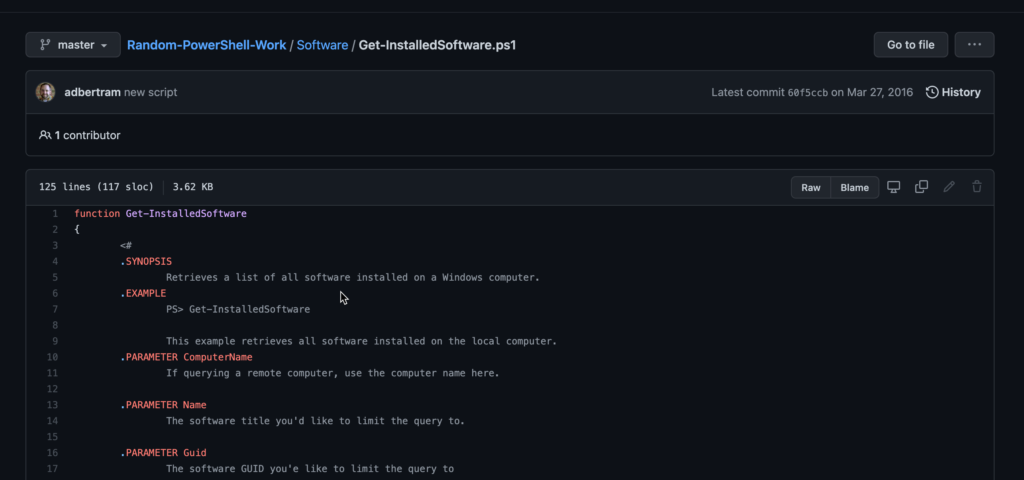
Since the code to correctly parse these values is way more than a single article can hold, I’ve prebuilt a function called Get-InstalledSoftware to list installed software with PowerShell that wraps all of that code up for you as you can see below that lists installed programs on a computer.
function Get-InstalledSoftware {
    <#
	.SYNOPSIS
		Retrieves a list of all software installed on a Windows computer.
	.EXAMPLE
		PS> Get-InstalledSoftware

		This example retrieves all software installed on the local computer.
	.PARAMETER ComputerName
		If querying a remote computer, use the computer name here.

	.PARAMETER Name
		The software title you'd like to limit the query to.

	.PARAMETER Guid
		The software GUID you'e like to limit the query to
	#>
    [CmdletBinding()]
    param (

        [Parameter()]
        [ValidateNotNullOrEmpty()]
        [string]$ComputerName = $env:COMPUTERNAME,

        [Parameter()]
        [ValidateNotNullOrEmpty()]
        [string]$Name,

        [Parameter()]
        [guid]$Guid
    )
    process {
        try {
            $scriptBlock = {
                $args[0].GetEnumerator() | ForEach-Object { New-Variable -Name $_.Key -Value $_.Value }

                $UninstallKeys = @(
                    "HKLM:\Software\Microsoft\Windows\CurrentVersion\Uninstall",
                    "HKLM:\SOFTWARE\Wow6432Node\Microsoft\Windows\CurrentVersion\Uninstall"
                )
                New-PSDrive -Name HKU -PSProvider Registry -Root Registry::HKEY_USERS | Out-Null
                $UninstallKeys += Get-ChildItem HKU: | where { $_.Name -match 'S-\d-\d+-(\d+-){1,14}\d+$' } | foreach {
                    "HKU:\$($_.PSChildName)\Software\Microsoft\Windows\CurrentVersion\Uninstall"
                }
                if (-not $UninstallKeys) {
                    Write-Warning -Message 'No software registry keys found'
                } else {
                    foreach ($UninstallKey in $UninstallKeys) {
                        $friendlyNames = @{
                            'DisplayName'    = 'Name'
                            'DisplayVersion' = 'Version'
                        }
                        Write-Verbose -Message "Checking uninstall key [$($UninstallKey)]"
                        if ($Name) {
                            $WhereBlock = { $_.GetValue('DisplayName') -like "$Name*" }
                        } elseif ($GUID) {
                            $WhereBlock = { $_.PsChildName -eq $Guid.Guid }
                        } else {
                            $WhereBlock = { $_.GetValue('DisplayName') }
                        }
                        $SwKeys = Get-ChildItem -Path $UninstallKey -ErrorAction SilentlyContinue | Where-Object $WhereBlock
                        if (-not $SwKeys) {
                            Write-Verbose -Message "No software keys in uninstall key $UninstallKey"
                        } else {
                            foreach ($SwKey in $SwKeys) {
                                $output = @{ }
                                foreach ($ValName in $SwKey.GetValueNames()) {
                                    if ($ValName -ne 'Version') {
                                        $output.InstallLocation = ''
                                        if ($ValName -eq 'InstallLocation' -and
                                            ($SwKey.GetValue($ValName)) -and
                                            (@('C:', 'C:\Windows', 'C:\Windows\System32', 'C:\Windows\SysWOW64') -notcontains $SwKey.GetValue($ValName).TrimEnd('\'))) {
                                            $output.InstallLocation = $SwKey.GetValue($ValName).TrimEnd('\')
                                        }
                                        [string]$ValData = $SwKey.GetValue($ValName)
                                        if ($friendlyNames[$ValName]) {
                                            $output[$friendlyNames[$ValName]] = $ValData.Trim() ## Some registry values have trailing spaces.
                                        } else {
                                            $output[$ValName] = $ValData.Trim() ## Some registry values trailing spaces
                                        }
                                    }
                                }
                                $output.GUID = ''
                                if ($SwKey.PSChildName -match '\b[A-F0-9]{8}(?:-[A-F0-9]{4}){3}-[A-F0-9]{12}\b') {
                                    $output.GUID = $SwKey.PSChildName
                                }
                                New-Object -TypeName PSObject -Prop $output
                            }
                        }
                    }
                }
            }

            if ($ComputerName -eq $env:COMPUTERNAME) {
                & $scriptBlock $PSBoundParameters
            } else {
                Invoke-Command -ComputerName $ComputerName -ScriptBlock $scriptBlock -ArgumentList $PSBoundParameters
            }
        } catch {
            Write-Error -Message "Error: $($_.Exception.Message) - Line Number: $($_.InvocationInfo.ScriptLineNumber)"
        }
    }
}
Once you copy and paste this function into your PowerShell console or add it to your script, you can call it by using a particular computer name with the ComputerName parameter.
List Installed Software with PowerShell
PS> Get-InstalledSoftware -ComputerName XXXXXWhen you do this, you will get an object back for each piece of software that’s installed. You are able to get a wealth of information about this whatever software is installed.
If you know the software title ahead of time you can also use the Name parameter to limit only to the software that matches that value.
For example, perhaps you’d only like to check if Microsoft Visual C++ 2005 Redistributable (x64) is installed. You’d simply use this as the Name parameter value as shown below.
PS> Get-InstalledSoftware -ComputerName MYCOMPUTER -Name 'Microsoft VisualC++ 2005 Redistributable (x64)'Summary
Using PowerShell to get installed software, you can build a completely free tool that you and your team can use to easily find installed software on many Windows computers at once!